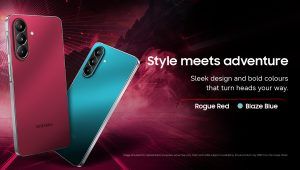
With the arrival of the new Galaxy Z Fold8 series, the upgrade bug has officially bitten a lot of power users. Whether you are eyeing the Fold8, which goes wide, squat, and dense in the hand when closed and opens into a proper widescreen tablet, or the Fold8 Ultra with its taller book-style shape, Samsung’s latest hardware makes a compelling case for making the switch.
If you are coming from an iPhone and wondering how to upgrade in the most seamless manner, the real question is rarely the hardware. Instead, it is what happens to your photos, chats, and contacts.
Here is a guide on how to use the latest version of Samsung Smart Switch, which makes moving from iOS to the Samsung Z Fold8 series super easy and frictionless. With this upgraded method, you can now move almost everything across wirelessly, with no cable, no adapter, and no computer required. You simply scan a QR code, choose what you want to bring over, and the two phones handle the rest while you finish setting up. Samsung’s upgraded wireless transfer needs Android 17 on the receiving device, which every model in the Fold8 series ships with out of the box.
Before You Start: Ten Minutes of Prep
None of this is difficult, but doing it first is the difference between a transfer that just works and one that stalls halfway.
- Update both devices. On the iPhone, Settings › General › Software Update. On the Galaxy, Settings › Software update › Download and install. This matters more than usual, because the wireless method works only above specific OS versions on both sides.
- You do not need to install anything on your iPhone. This is the part most people expect to be complicated, and it simply is not. On the upgraded method your iPhone connects using its own Camera app to scan a QR code. There is no app to download, no account to create. (Only older Galaxy devices running below Android 17 need the Smart Switch app installed on the iPhone from the App Store.)
- Charge both phones properly. Samsung asks for at least 20% on each device, but for a wireless transfer, you can comfortably keep both phones plugged into wall chargers while it runs since the ports remain free.
- Check your storage. Compare how much space your iPhone is actually using against free space on your new Galaxy. Transfers that run out of room partway through are common and entirely avoidable.
- Keep your number active with SMS working. You will need it afterwards for eSIM activation and UPI re-registration.
- Have both phones on the same Wi-Fi network and keep them close together.
- Leave Find My for later. If you are giving the iPhone for exchange or selling it, you must sign out of Find My first, otherwise Activation Lock leaves the handset unusable for the next owner. Do that only after you have confirmed everything reached your new phone.
The Wireless Transfer, Step by Step
This is the headline feature, and it lives up to it. No cable, no adapter, no computer, and nothing to install on the iPhone. Requirements: the receiving Galaxy needs Android 17 or later, which the Z Fold8 series has out of the box, and the iPhone needs iOS 26.6 or later. Smart Switch must be installed on both. The upgraded method is available everywhere except mainland China.
- Start setup. Power on your new Galaxy, tap Start, set your preferences, and accept the terms. You will reach a screen headed Scan the QR code
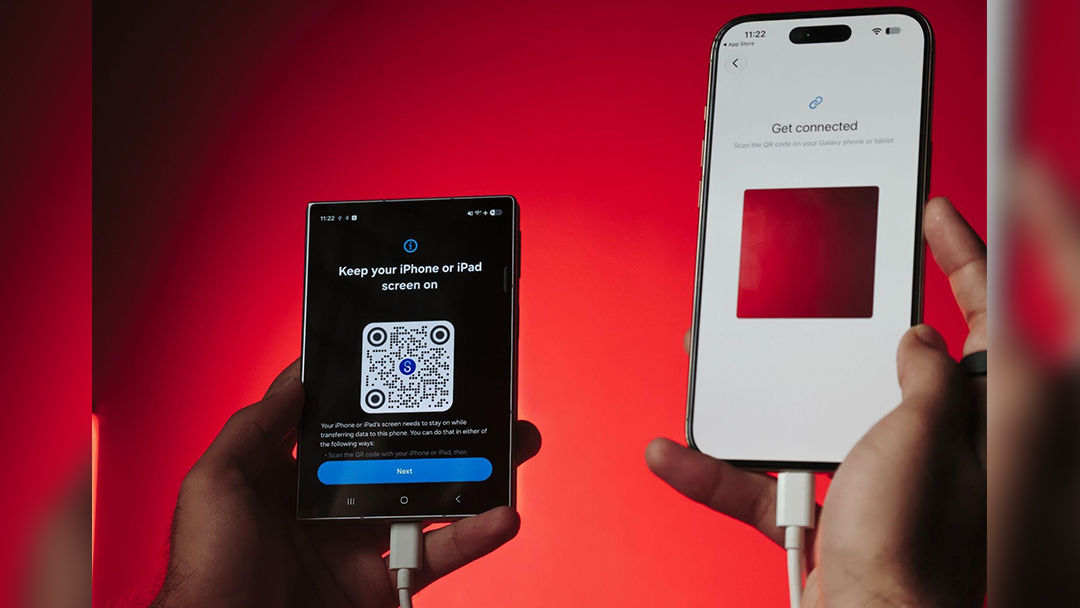
- Point your iPhone’s camera at it. Just the normal Camera app. Your iPhone recognises the code and prompts you to continue
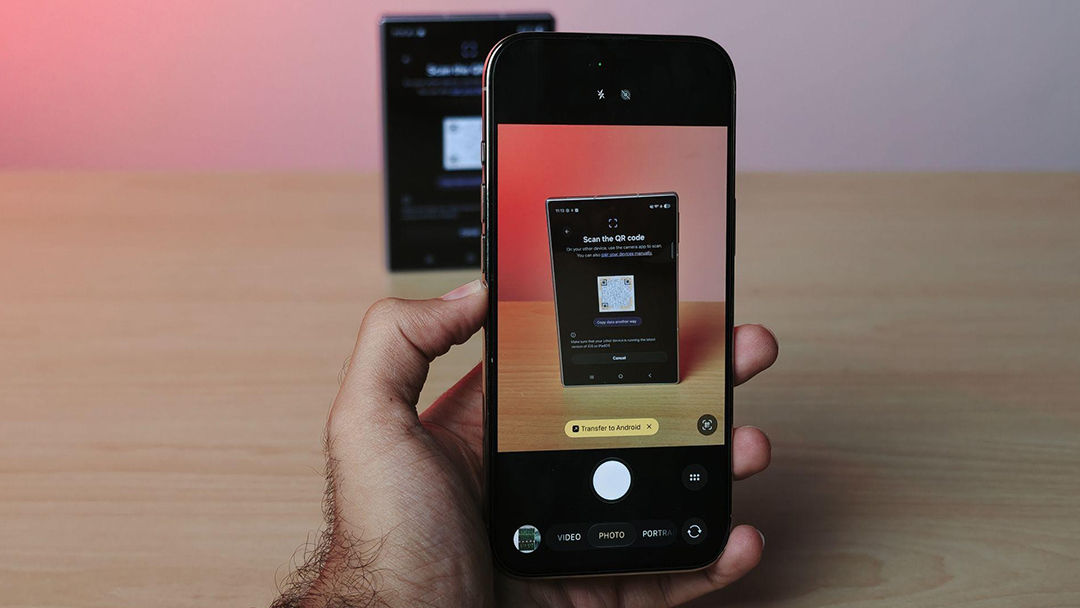
- Tap Continue on the iPhone when it asks you to place the devices next to each other
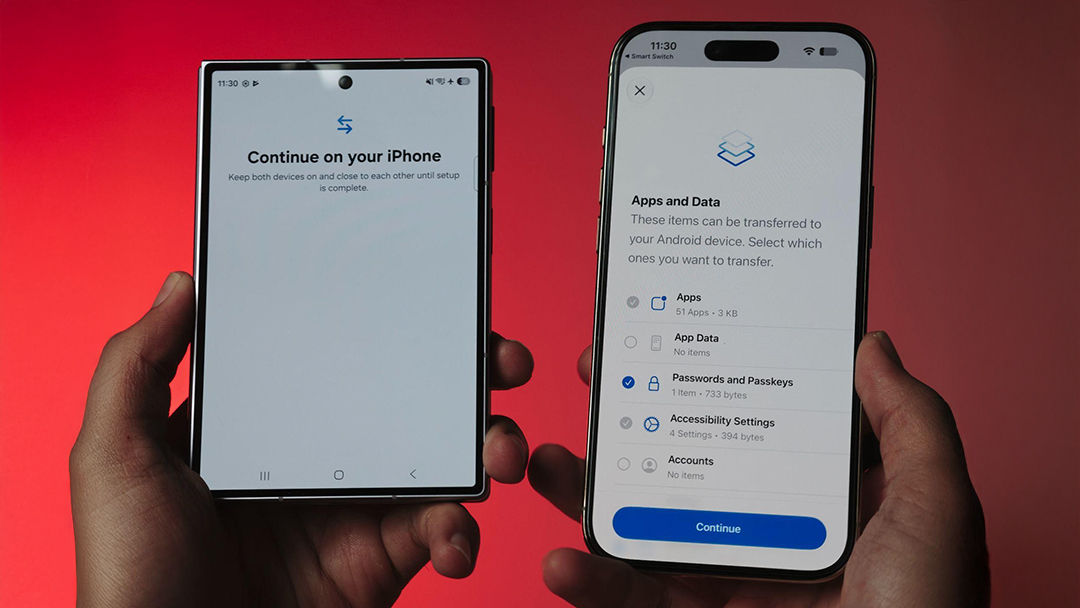
- Tap Allow on the Galaxy when Smart Switch asks for permissions covering calendar, call log, camera, contacts, nearby devices and notifications
- Choose what to copy. The Galaxy offers to bring across your apps, photos, contacts and Google account. Tap Next
- Confirm on the iPhone. It lists what can move, including apps, app data, passwords and passkeys, accessibility settings and calendars. Tap Continue, then Continue again for iCloud Photos and Files
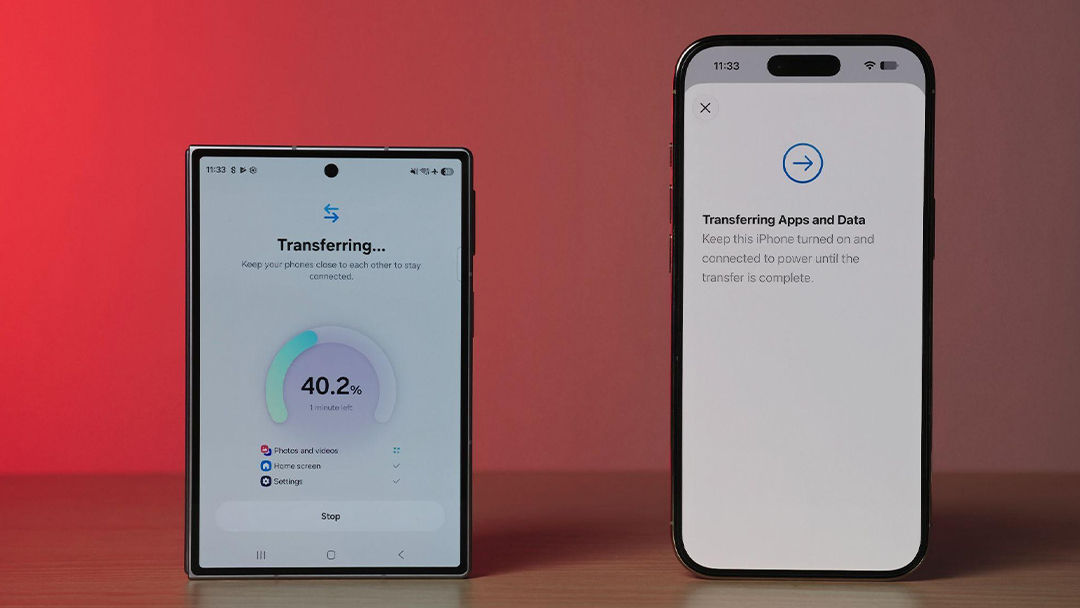
- Let it run. The Galaxy shows a progress percentage, then a list of Android app equivalents to install. Tap Install
- At the end the Galaxy shows a Data transfer results summary, itemised by images, videos, audio, apps, calls and contacts, so you can confirm at a glance that everything arrived.
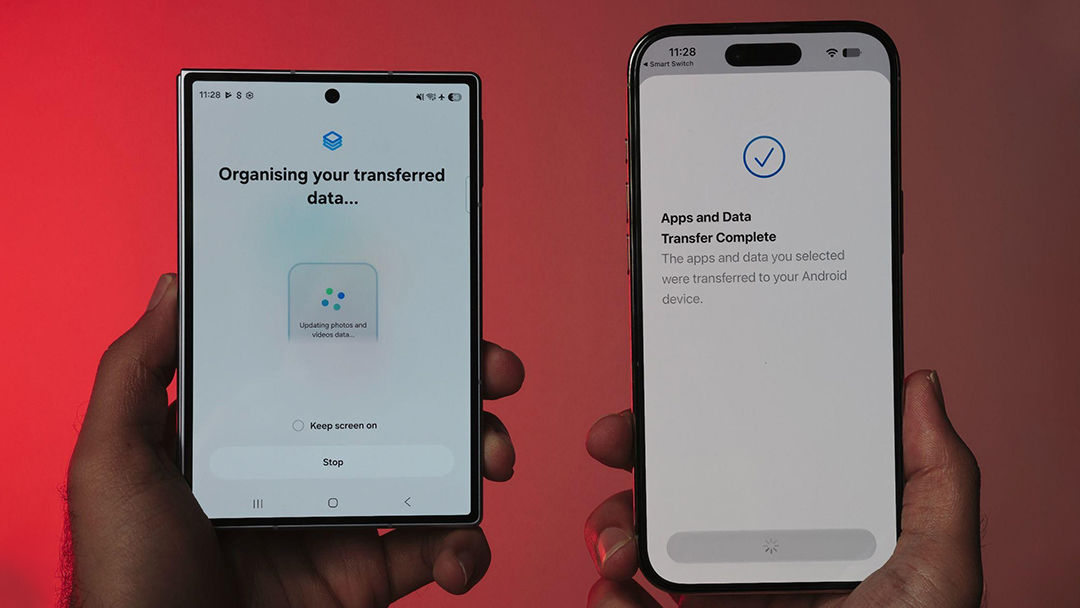
If the QR scan does not work for any reason, the Galaxy screen offers a Copy data another way option.
What comes across: this is the part that surprises people. Samsung’s upgraded method moves contacts, photos, videos, music and playlists, SMS, MMS and iMessage history, documents into the Files app, call history including FaceTime calls, voice memos, calendar, notes, alarms, your home screen layout, wallpaper, saved Wi-Fi networks, and even your passwords and passkeys.
That last part is worth reading twice. On older transfer methods, saved passwords stayed behind. On the upgraded method they come with you.
Notes. You can easily charge both phones during a wireless transfer, so feel free to keep them plugged in. And while the transfer runs you can use your Galaxy normally, but leave the iPhone alone: do not lock the screen or return to its home screen, because multitasking is not available on the iOS side during a wireless transfer.
Nothing is deleted. Smart Switch copies rather than moves. Your iPhone keeps everything it had, so you can take as long as you like before erasing it or giving it in exchange.
Already set up your phone? You have not missed the window
Nothing needs resetting. Open Smart Switch on your Galaxy, from the Samsung folder in your app drawer or Settings › Accounts and backup › Smart Switch. Tap Receive on this phone, choose your source, and the same QR code appears. Scan it with your iPhone camera exactly as above. Existing content on the phone is not overwritten.
One exception: WhatsApp chat history. That migration only works on a factory-new or freshly reset phone, so if your chats matter, read the WhatsApp section below before you finish setting up.
Top up from iCloud afterwards
Samsung includes a fourth step that is easy and genuinely useful. If something did not come across, tap Get your iCloud data on your Galaxy, sign in to your iCloud account, choose what is missing and tap Import.
This is where the photos hiding in the cloud turn up. If your iPhone storage has been full for months, and for a lot of people it has, those pictures were never on the device for Smart Switch to find. This second pass catches them.
Bring Across Your Display, Navigation and Keyboard Settings
Smart Switch has a second feature that goes well beyond your files, it carries over the personalisation that makes a phone feel like yours. This is excellent news for anyone wanting the phone to feel the same right after the switch when it comes to personal preferences.
During or just after setup, it walks you through three quick screens:
- Organise your phone. Choose which display and home screen options to bring across, then tap Next
- Navigate your phone. Choose your navigation preferences, then tap Next
- Your keyboard. Choose which keyboard settings to carry over, then tap Next
It takes under a minute, and it is the difference between a phone that feels borrowed and one that feels like yours from day one.
When to Use a Cable Instead
Wireless now carries almost everything, so the cable is no longer the default. Two situations still favour it.
- If you want your WhatsApp chats. WhatsApp migration is cable-only and must happen during initial setup, and for most Indian users this is the deciding factor. More on it below.
- If you want the fastest transfer speed. A wired connection moves data much quicker than Wi-Fi. Just ensure both phones are fully charged first, since you cannot plug them into a wall charger while the ports are in use.
Everything else, SMS history included, now transfers wirelessly on the upgraded method.
The cable process is just as straightforward:
- Power on your new Galaxy, choose your language, accept the terms
- Tap iPhone or iPad and connect the two phones
- Tap Trust on the iPhone when the “Trust this computer?” prompt appears, and enter your passcode
- Select your content and tap Transfer
- Leave the cable connected until it finishes
Frequently Asked Questions
- Do I really not need a cable? Correct, and you do not need an app on the iPhone either. Your messages, media, call history, settings, Wi-Fi networks and even saved passwords all move wirelessly after a single QR scan. The only common reason to reach for a cable is WhatsApp.
- How do I know everything is transferred? The Galaxy finishes with a Data transfer results screen listing what came across by category and total size, so you can check before erasing the iPhone.
- Does Smart Switch delete anything from my iPhone? No. It copies. Everything exists on both devices afterwards, so erase the iPhone whenever you are ready.
- How long does it take? Anywhere from ten minutes to over an hour, driven almost entirely by how much data you have.
- Can I use my phone while it transfers? It is not recommended you use the phones when the migration is in process.
- Can I run it more than once? Yes. Running it again to pick up a skipped category is fine and will not duplicate what already moved.
- Do I need the Smart Switch app on my iPhone? Not for the upgraded method. Your iPhone connects by scanning a QR code with its ordinary Camera app, with nothing to install.
- Will my WhatsApp chats really transfer? Yes, but on stricter terms than the rest of your data. You need a cable, matching app versions, and a Galaxy that is factory new or freshly reset with WhatsApp not yet signed in. Handle WhatsApp during initial setup rather than afterwards.
- Will UPI work straight away? No. Every payment app needs re-registering once your number is active on the new phone. This is an NPCI device-binding requirement, not a Samsung one.
- The transfer keeps disconnecting. What now? On wireless, make sure both phones are on the same Wi-Fi, close together, with Smart Switch open on the iPhone and both screens awake. On cable, it is nearly always the cable itself, so try a known-good one, since many cheap cables carry power but not data.
- It is taking much longer than expected. Large video files are almost always the cause. Check the progress indicator is still moving before assuming it has frozen.
- Some photos are missing afterwards. They were probably only in iCloud, never downloaded to the iPhone. Use the Get your iCloud data step described above, which is exactly what it is for.